How to import iPhone contacts

How can I import contacts directly onto my iPhone, iPod Touch or iPad?
Importing contacts to your iPhone is easy. Click "Extract Contacts" in iPhone Backup Extractor, and then email the extracted file to yourself. Open the email on your iPhone using Apple's Mail app, and it'll let you automatically import the contacts to your address book. Simple!
If you don't synchronise your iPhone with an email or contacts client, it is possible to restore contacts to an iPhone by simply emailing a VCard file to the phone. Once the phone has received the email, open the VCard attachment and an option to import the data will be shown.
How to import vCard VCF contacts into Gmail
If you are searching for a way to import vCard contacts into your Gmail account, this article will show you how to do just that. vCard contacts are stored in a filename ending in .vcf (you can read more about this subject here) and can be afterwards exported in different ways such as by email.
1. Log in to Gmail
Log into your Gmail account using the required credentials.
2. Select "Contacts", then "Import Contacts"
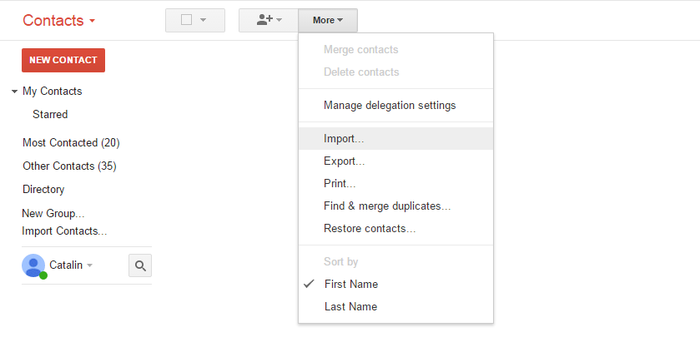
Click on the “Mail” drop-down menu near the top-left of the Gmail window and choose "Contacts". Then go to the “More” button and select "Import Contacts".
3. Select your vCard or .vcf file
Click "Choose file" and select the vCard that lists your contacts.
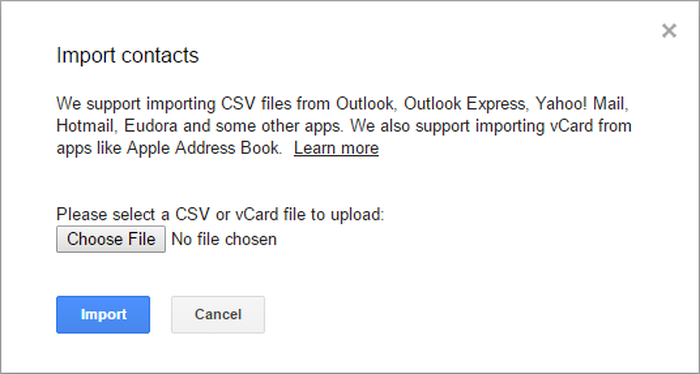
That's all! The imported contacts should now be available in your Gmail account.
We hope this short tutorial has been helpful to you and was taught you what you wanted to know.
Do you want to merge multiple .vcf files?
If you have several .vcf files and you want to merge them and then import them in your Gmail account, you should follow these steps:
On Windows
- Copy all your .vcf files into a folder
- Access Windows command prompt (
⊞ Win+Rkeys) then typecmdand hit⏎ Enterto open it. Then, go to the folder where all the.vcffiles are stored. You should select the drive then reach to the destination folder. - Once the destination is selected, use the following DOS command:
copy *.vcf all.vcf
On Mac
- Open the terminal: it's at
Applications→Utilities→Terminal, or you could tap⌘ Cmd+and typeTerminalthen hit⏎ Enter - Go to the folder with the files you intend to merge
- Type the following command:
cat *.vcf > contacts.vcf
This is it! Now you have a single .vcf file, ready to be imported into your Google account.
Have you experienced problems trying to import a vCard file into Google mail? If you need more help with this, please reach out.
Importing contacts from CSV
There are instructions on how to import your contacts from CSV to Gmail and Outlook. Almost all contact management software will support import from CSV. This article describes in more detail how to import your iPhone or iPad CSV contacts into Outlook.
The contacts CSV files are generated with the following fields:
- Title, FirstName, MiddleName, LastName, Suffix, Nickname
- Company, Department, JobTitle, Note, Birthday, WorkPhone, WorkFax
- MobilePhone, HomePhone, OtherPhone, SpousePhone, MainPhone
- Pager, Url, Tag, Email, Street, City, State, Zip, Country, CountryCode
Importing contacts from iOS to other platforms
iPhone Backup Extractor can export your contacts in a number of different formats, but it defaults to using the vCard / VCF format, as it's the most portable, and easiest to work with. If you'd like to get into details, you can choose to export your contacts into CSV format. We recommend vCard, however.
We have detailed instructions on how to import your contacts to Gmail on our blog. We also have a knowledge-base article "How to import to Android" for a detailed guide on how to import data back to your Android device.
Once you've extracted your contacts file you should open it with whichever program you use to manage your contacts. This might be a web-based program, like Gmail or Hotmail, or a desktop application like Outlook or Apple Mail.

Each program opens contacts in a different way, but almost all will work with either the VCard or CSV files that the iPhone Backup Extractor produces. The options for Google Mail are described below.
How to import contacts from CSV into Outlook
If you've used iPhone Backup Extractor to recover your iPhone contacts from your backup into a CSV file and now want to get them into Outlook, here's a guide to doing it.
1. In Outlook, Start Import
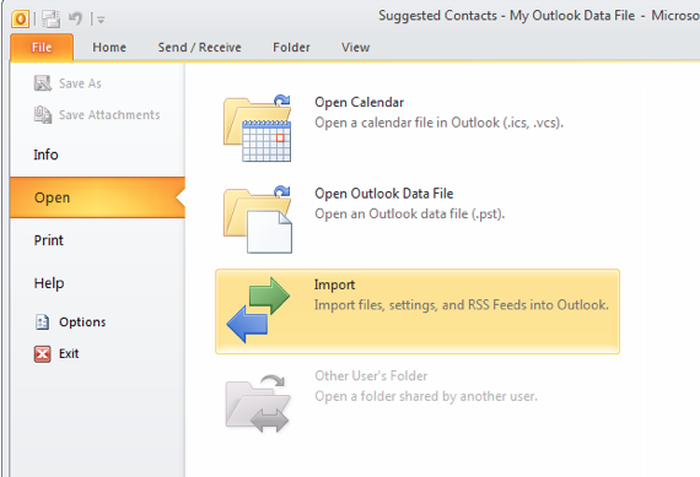
Start Outlook. Then, in Outlook, click "File", "Open", then "Import".
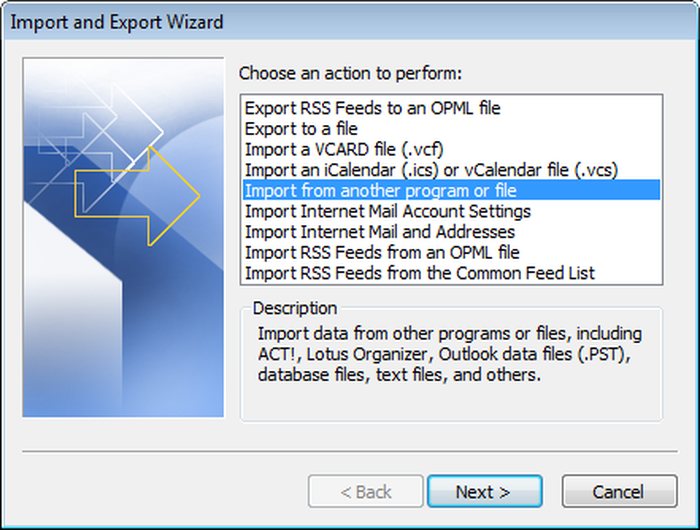
2. Choose "Import from another program or file
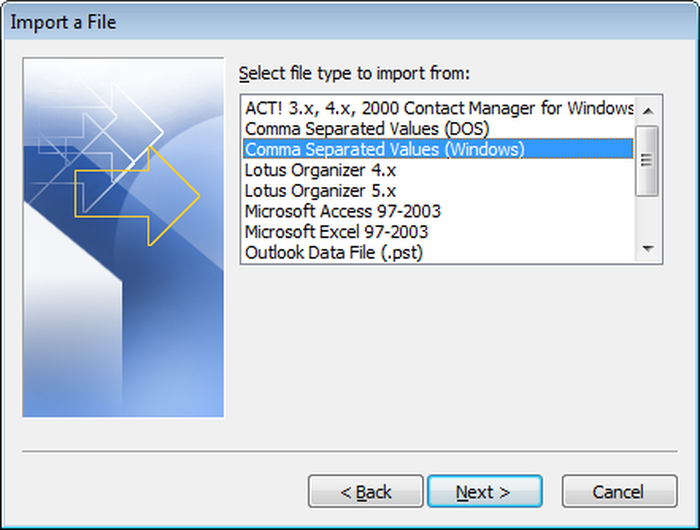
3. Select "Comma Separated Values (Windows)
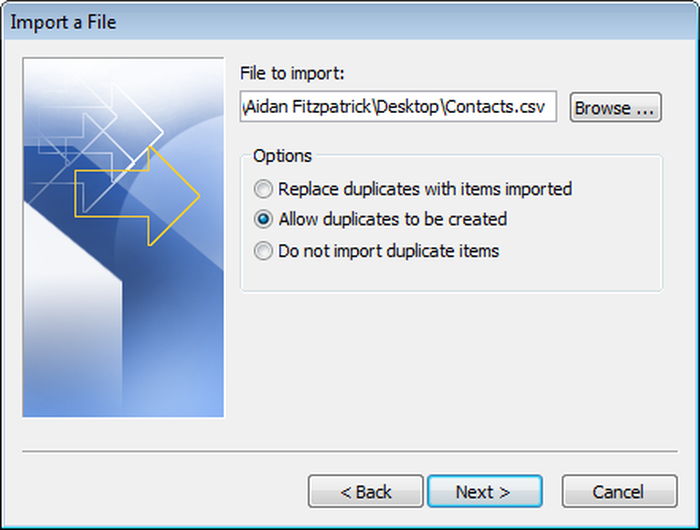
4. Select your CSV file
Select the CSV file you created using iPhone Backup Extractor and decide whether you want to allow the software to create duplicates of your contacts if you have more than one set of information for a particular person.
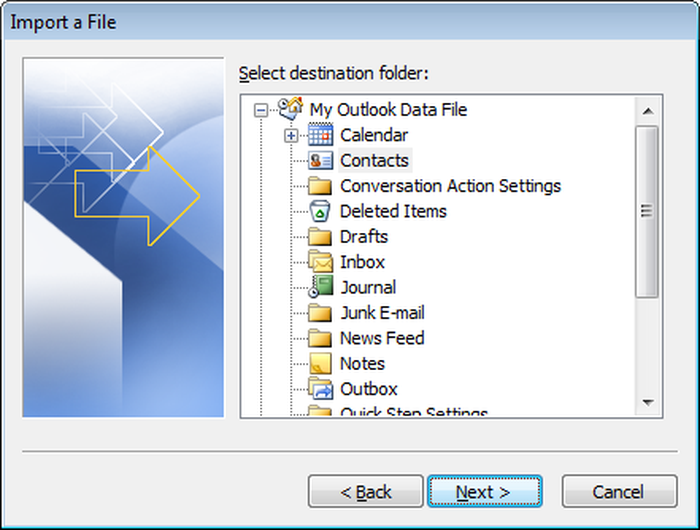
5. Select where you'd like the contacts to go
Select the folder where you'd like the contacts to go. You'll probably want to put them in your Outlook Contacts folder.
6. Optional: Re-save CSV file in Excel
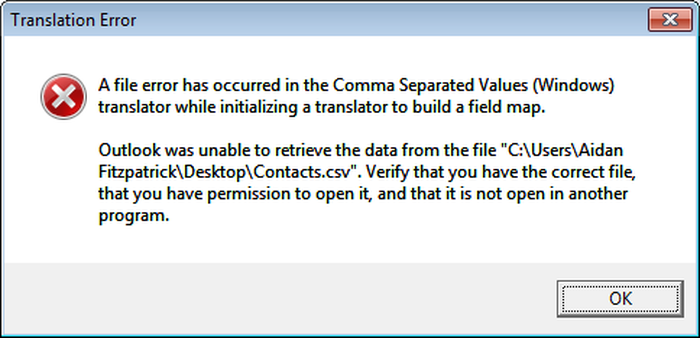
If you see the following error, load the CSV file in Excel, save it, then try importing it again. It should now work.
7. Confirm the Import
Click "Finish" to confirm the import.
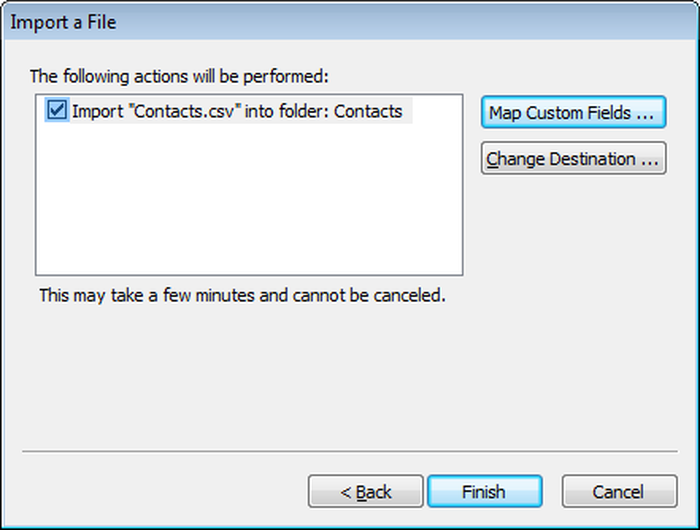
That's it! Your contacts should now have been imported.
Import iPhone contacts to your Mac Address Book
To import a contacts CSV to the Mac Address Book, you'll need to set a new group first and then choose the correct settings to save the contacts.
-
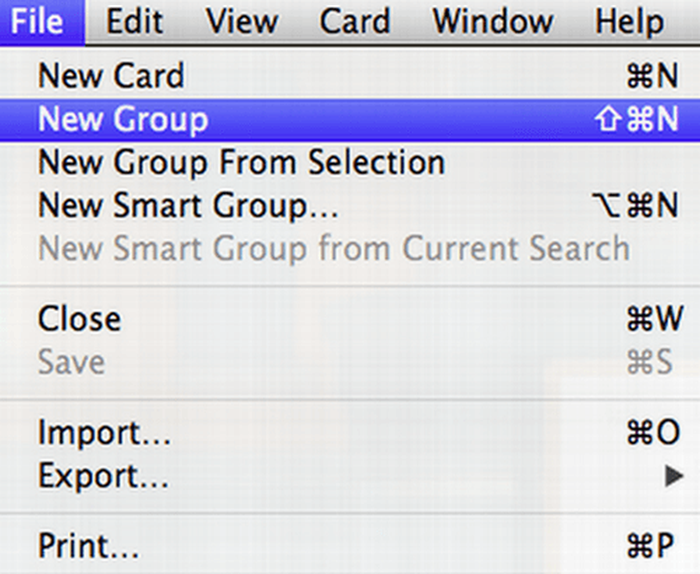
Open the Mac Address Book ("Contacts" in the Launchpad) and create a "New Group" using the "File" drop-down menu

New group -
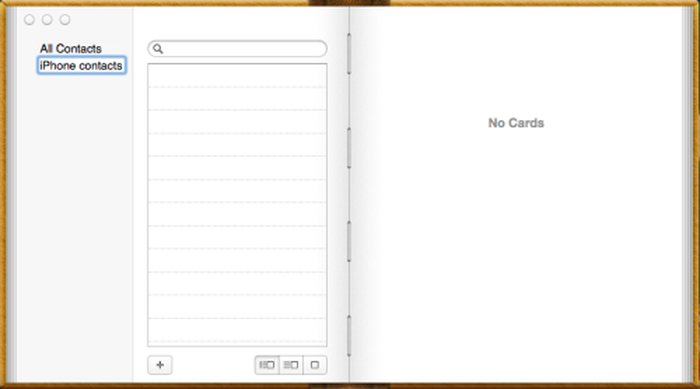
Give the new group a name, say "iPhone contacts"

Give the group a name -
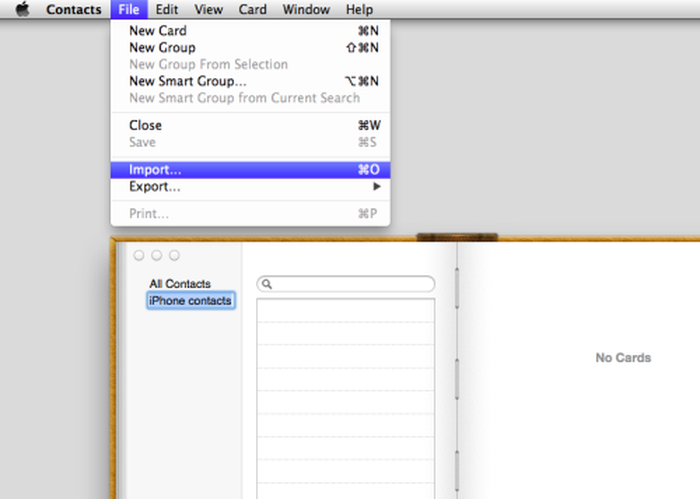
Highlight the new group. In the drop-down menu, select "Import"

The import option -
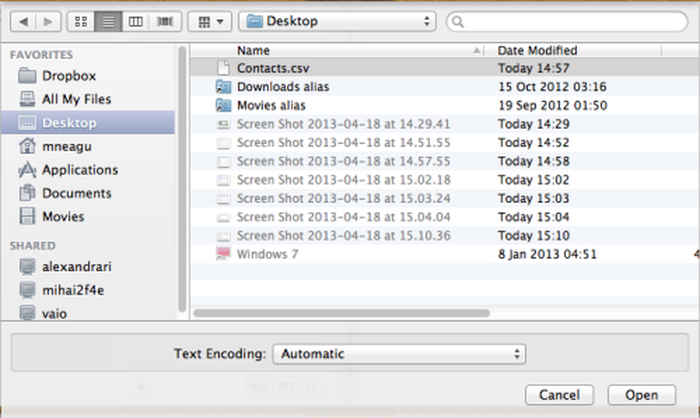
Find the extracted contacts CSV file with your iPhone contacts, double-click it and choose "Open"

Open the CSV -
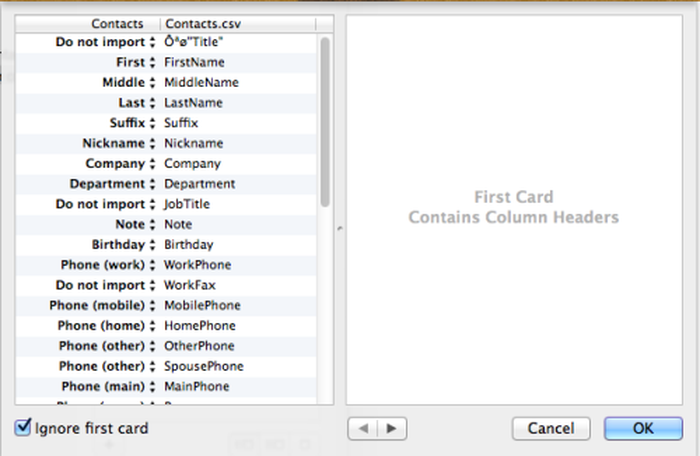
If the CSV file does not include header columns, uncheck the "Ignore first card" box.

Ignore the first card -
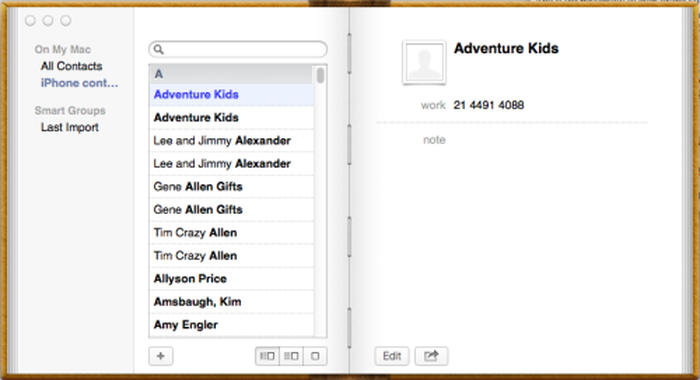
Click "OK" and voilà! Your contacts should now be imported to your Mac!

Imported contacts
If the possibility of ever losing your contacts again gives you the chills, you can always back up your Mac Address Book for safety. The contents of the Mac can be easily synced with the phone if you ever need it.
Importing other types of data?
If you've lost or deleted data on your iPhone or iPad, we can help. We publish a set of guides on importing data back to your iPhone. See how to restore deleted data from iTunes backups for more information.
Restoring other types files to your iPhone can be tricky without technical know-how. Reach out to our support team if you're uncertain how to proceed. We'd love to help. 👋

