How to import & export BlackBerry data to Outlook, Gmail, Android & more

How to import BlackBerry contacts from CSV into Outlook
If you've used BlackBerry Backup Extractor to recover your BlackBerry contacts from your IPD or BBB backup into a CSV file and now want to get them into Outlook, here's a guide to doing it.
How to import BlackBerry calendar files into Gmail
Recently lost or deleted the calendar file on your BlackBerry? If you have used BlackBerry Backup Extractor to extract the calendar file from an IPD or BBB backup, importing the file back to your BlackBerry device is as easy as 1-2-3. Manage your calendar efficiently and bring it right into your BlackBerry phone in just a few, easy steps.
-
Open Gmail account
Log into your Gmail account or create a new account if you do not have one already.
-
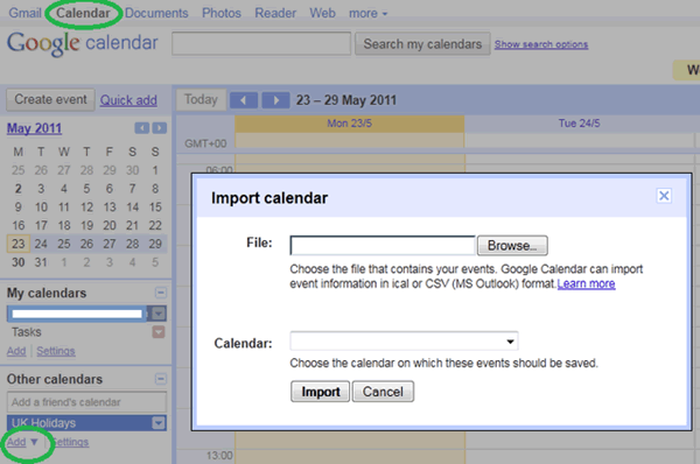
Click on "Calendar"
Click on "Calendar" on the topmost part of the screen.
-
Import Calendar
Once Google Calendar is open, click on the boxed drop-down arrow and select "Import Calendar". A new window should appear.
-
Import
.icsand.csvcalendar fileBrowse the specific
.ics(iCal or iCalendar) or.csvfile that you want to import, then click "Import".
How to import BlackBerry emails into Outlook
After extracting emails from your backup you might be interested in a way of importing these to your email client.
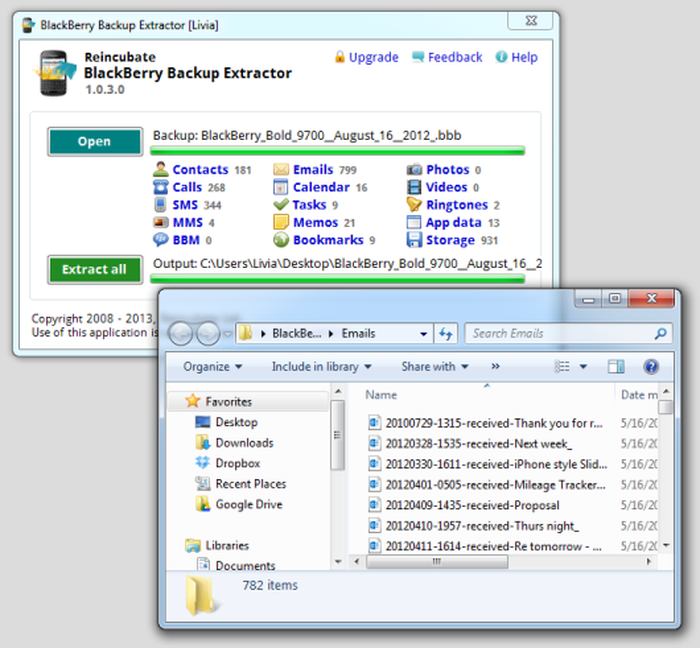
- Open the folder containing the .eml files
- Open Outlook and create a new folder, but you can use any folder except the Inbox.
- Select the
emlfiles in the folder you want to import - Then simply drag the files into the new folder you created in Outlook. If you do this to Inbox, you will create a new email with the .eml files attached
- NOTE: This process should work for
eml,msgor any other standard RFC822 email message.
How to import BlackBerry emails into Outlook Express or Windows Live
- This process is much the same as Outlook
- Locate the
emlfiles and make sure they are all within a single folder. Open the folder with allemlfiles. - Open Outlook Express or Windows Live
- Click
File→Folder→Newand the chose where to place this new folder - Select all your
emlfiles and drag and drop them into the folder you just created in Outlook Express or Windows Live
That's it! You should have successfully imported your eml files into Outlook.
Sync contacts and calendar with your BlackBerry & Google Sync
Google Sync lets users manage contacts and calendar from their Google account to their BlackBerry device. This allows easy data transfer to keep up-to-date information on a mobile device. If you use BlackBerry Backup Extractor to retrieve files from a backup, Google Sync enables you to put contacts and calendar data back to your BlackBerry phone with ease. After importing your contacts and calendar to your Google account, syncing it with your BlackBerry device is a piece of cake! Here is a simple guide on how to do it.
Download Google Sync
- Go to
http://m.google.com/syncusing your Blackberry browser. - Once the page appears, you should see a "Download Google Sync" link. Simply click the scroll wheel or BlackBerry menu button to show the options, and select "Get Link".
- Select
Downloadon the download page. It will automatically install the application on your device. Once installed, you should see the Google Sync icon on your home screen.
Sync Google Account
- Open the Google Sync app on your home screen.
- Once you see the login page, put in your full Google email address and password. If the information is valid, it should successfully sign in to your account.
- A welcome screen will appear. If you want to alter the settings, simply click the scroll wheel and select
Options. Default settings have Calendar and Contacts syncing both enabled. - Once done, click
Sync Nowat the bottom of the page to start synchronization. The process time depends on the amount of data you have in your Google account. You can run it in the background while you access other apps on your BlackBerry.
How to transfer BlackBerry Contacts to Android
Until recently, you could simply transfer contacts from a BlackBerry phone using Google Sync. This transferred data with ease to an Android phone via by connecting to Gmail. One downside of the Google Sync app was that caller images were not synced with the contacts.
Unfortunately, Google has now stopped distributing Google Sync to the BlackBerry. However, the app still works, although it is no longer available to download from Google, and not supported for new BlackBerry devices or the latest OSes.
If you still have access to Google Sync, try the following:
- Sync your BlackBerry with Google Sync using the instructions above
- Activate your Android smartphone and connect it with your Gmail account
- Sync your contacts with your Android phone using the inbuilt phone options
For BlackBerry owners that are unable to access Google Sync any more, we recommend you to sync or import your BlackBerry Contacts into Microsoft Outlook or Gmail with the instructions above.
Transfer your BlackBerry contacts to your Samsung device using Samsung Kies
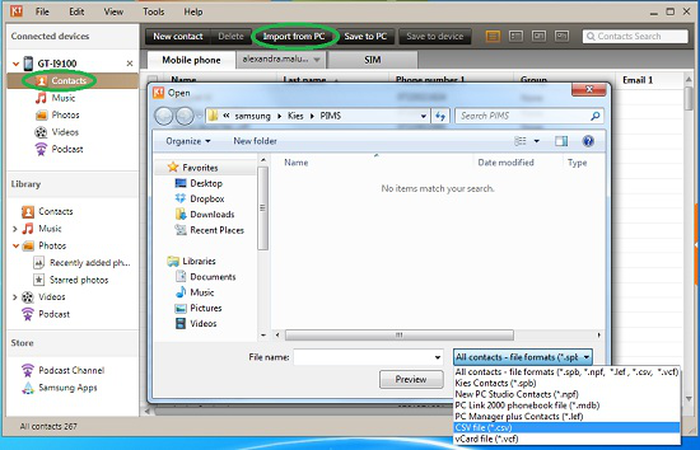
For Samsung users the transfer of the BlackBerry contacts is pretty easy with Kies. You can sync the contacts with Outlook or simply import from your PC the BlackBerry contacts CSV file (retrieved with the help of BlackBerry Backup Extractor) by doing the following:
- Connect your Samsung device to your computer with USB
- Open Samsung Kies
- Click on
Contacts→Import from PC→Import CSV Contacts - Browse for the BlackBerry CSV contacts file and import
How to transfer BlackBerry SMS messages to Android
Extract the BlackBerry SMS messages into CSV file from your BBB or IPD backup with the help of BlackBerry Backup Extractor and use iSMS2Droid to restore them to your new Android device.
How to transfer contacts, files, and media with to a Z10 with BlackBerry Link
Once your new BlackBerry Z10 is out of the box, there are many ways you can transfer your data from your old phone. You can do it by BlackBerry Link, by media card or by extracting data from your BlackBerry backup with BlackBerry Backup Extractor, then import BlackBerry contacts and other data to your phone. Please notice that for a media card transfer, you'll need to have BlackBerry 7.0 OS installed on the old phone. So in summary, you can:
- Transfer data to the Z10 by media card (requires BlackBerry OS 7.0 or higher)
- Transfer data with BlackBerry Link (requires BlackBerry OS 5.0 or higher)
- Make a BlackBerry backup of the old phone, extract data with BlackBerry Backup Extractor and import it to the BlackBerry Z10
There's been a lot of talk about what BlackBerry Link can or cannot do, but the truth is that BlackBerry Link only moves a part of your data over to the new BlackBerry 10 smartphone. To transfer data with the BlackBerry Link, all you need to do is:
- Download BlackBerry Link onto your computer
- Connect your old device to your computer using a USB cable
- Select what data you want to transfer to the new phone
- Hit
Nextand the existing data will be prepared for transfer - Connect your new BlackBerry Z10 device (pretty soon we will also see the BBQ10)
- Select your device and the data will be synced to your phone
- Choose what media you want to transfer and you are done
With BlackBerry Link, you can transfer information that was saved to the memory on your old device, including:
- Blackberry contacts, BBM contacts, files (pictures, music, documents)
- Calendar items, tasks and memos
- Browser bookmarks and folders, alarm/clock settings
- Text / SMS / MMS / PIN messages, phone call logs
- WLAN Profiles (for non-enterprise networks), Password Keeper entries
BlackBerry Link will not transfer:
- Data that is backed up wirelessly, or synchronized with an online account (such as Gmail or Hotmail)
- Records synchronized with BlackBerry Enterprise Server (includes contacts and calendar entries)
- Tasks and memos are only transferred if your old BlackBerry smartphone was not activated on a BlackBerry Enterprise Server
- Data saved on your SIM card that has not been saved to device memory or media card before the transfer
To obtain the missing records you need to add the email account previously used to synchronize this data. Many users have had trouble because of this option and unfortunately, transferring data by adding email accounts doesn't always work.
BlackBerry Link is great to backup and restore your phone.
As always, we advise users to regularly back-up their BlackBerry to prevent from losing data. BlackBerry backups made with BlackBerry Desktop Manager are stored locally on your computer and can be accessed with BlackBerry Backup Extractor.
How to sync BlackBerry contacts with Outlook
Syncing your Blackberry contacts to your computer with Outlook is pretty neat and easy, especially if you have piles of contacts, both work and personal and you need to find your way through info you have gathered throughout the years.
Connect your Blackberry smartphone to the computer with your USB cable.

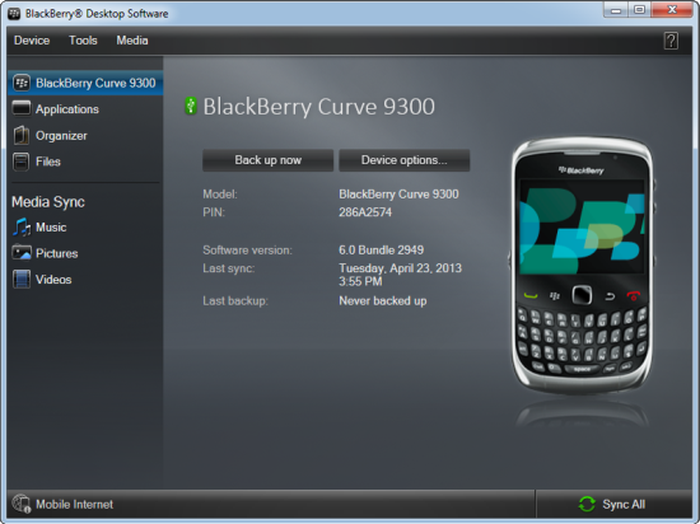
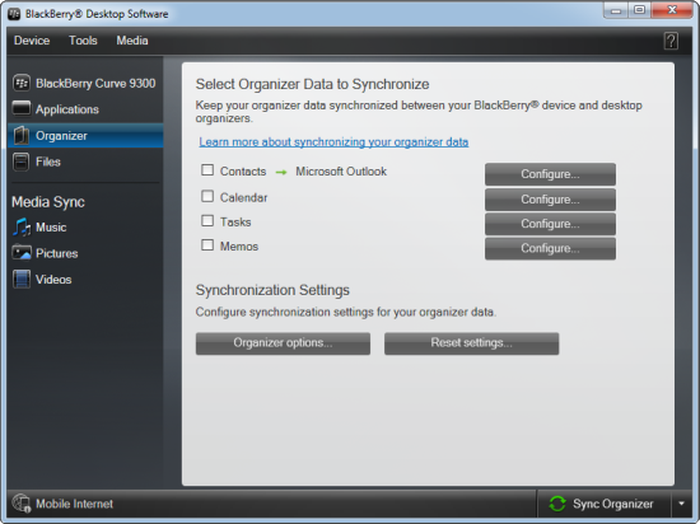
BlackBerry Desktop Software showing a USB-connected device Open BlackBerry Desktop Manager Software and select the "Organizer" tab.

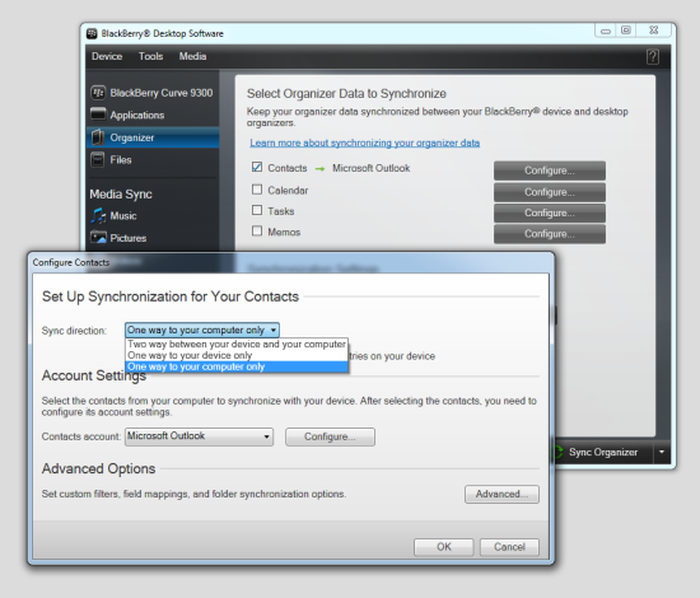
BlackBerry Desktop Software sync options Choose the Select "Contacts" and in the window, choose whether to sync contacts from the BlackBerry to Outlook, vice versa, or a two-way sync (merge contacts from phone and computer).

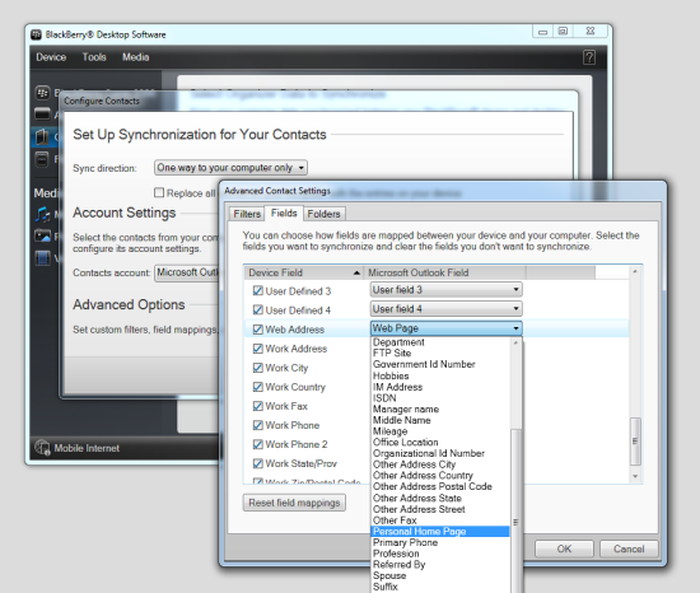
BlackBerry Desktop Software's contact sync options In this case, I will select to merge BlackBerry contacts to Outlook, to avoid my phone being flooded by work contacts. The "Advanced Options" view will let you select contacts to sync, and even select by name, address, email, and many other categories.

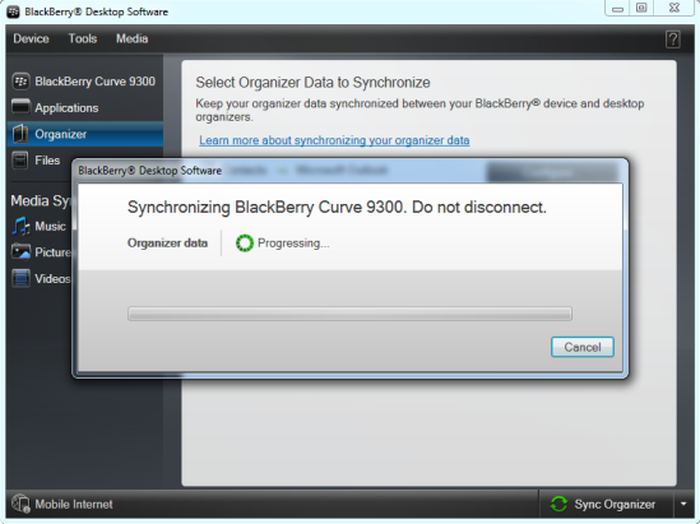
BlackBerry Desktop's advanced sync options Click "Sync Organizer" and the Desktop Software will sync your BlackBerry and Outlook manager in just a few minutes!

BlackBerry Desktop Software syncing
How to back up BlackBerry Messenger contacts
If you have a massive BBM contact list don't forget to back it up. BlackBerry Messenger offers you a few options to backup up your BBM address book, via:
- Local Backup (MicroSD card or on the device itself)
- Remote backup
- BlackBerry Desktop Software (Stored in
BBBandIPDfiles)
As of Blackberry Desktop Manager 7.0, the BlackBerry Messenger (BBM) contacts are no longer contained in your BlackBerry backup, but will be restored upon entering your BlackBerry ID. Here's a helpful tutorial on how to backup your contact list.
How to recover BlackBerry Messenger contacts and conversations
Transferring your BBM information to a new BlackBerry should be pretty easy if you follow the steps shown in the video below. The only point that you have to bear in mind is to use the same email address you used to register with the BBM servers, with your new smartphone.
If you have set BlackBerry Desktop to save the data you can use BlackBerry Backup Extractor to extract your BBM conversations or saved BBM backup data. You can find BBM backup data in the following locations inside the BlackBerry Backup Extractor default extraction folder:
BlackBerry Messenger conversation and backup files
\BBM Conversations\conversations.csv\Content Store\home\user\im\BlackBerry Messenger\322E5CD6\backup\


by makarand apte
most easiest way to transfer contacts is to pair the devices via bluetooth. Open paired devices. Select the one you want and press blackberry button. It opens an option to transfer contacts. select it and its done.
reply by: Reincubate Support
Great tip, thanks for sharing!
by Steve Quan
Well, I'm still trying to find a solution to get my BBM contacts from my OS5 phone to a Z10 activated via SIMM transfer on a BES. I was able to backup my BBM contacts on the BB Curve but can't find any way to restore it to the new phone :(
by Casey
I have synced my contacts from outlook to my Q10 and all there. However, the "File As" order is all over the place on the Q10 - some by last name and some by First Name, whereas on Outlook they are all filed by Last/First. Makes searching for a contact really difficult as you never know where in the alphabetic list they will be Any ideas?
by Julio Roca
Gracias por sus apoyos, muchos exitos
by Suzanne
Wow. Thanks so much for your service. I updated to BB 7.1 Bundle 2705 and somehow lost 2,500 of my 3,000 contacts in the process. (I had never used BB Protect or BBM.) I did have a recent backup file I'd created with BB Desktop Manager but for whatever reason (corrupted, could not access) I could not use it to restore them onto my phone, myself. I used your service to extract my contacts and used links that you provided in order to upload them into Outlook and then import them back onto my phone. I am exhausted from this weeklong experience - and very frustrated with BB, overall, right now - but really grateful for your service. Thank you! ps - Other things that I (unsuccessfully) tried: BB website, contacting BB customer service, BB community forums, community forums for other non-BB websites, etc